Writing Your First Application
Note
If you’re not yet familiar with the fundamental architecture of a Fabric network, you may want to visit the Introduction and Building Your First Network documentation prior to continuing.
In this section we’ll be looking at two sample applications to see how Fabric apps work. These apps (and the smart contract they use) – collectively known as “Fabcar” – involve querying a ledger that has been pre-populated with cars and then updating that ledger to add new cars and to change car owners.
We’ll go through three principle steps:
1. Setting up a development environment. Our application needs a network to interact with, so we’ll download one stripped down to just the components we need to run queries and updates:
2. Learning the parameters of the sample smart contract our app will use. Our smart contract contain various functions that allow us to interact with the ledger in different ways. We’ll go in and inspect that smart contract to learn about the functions in our applications will be using.
3. Developing the applications to be able to query and update Fabric records. We’ll get into the app code itself (our apps have been written in Javascript) and manually manipulate the variables to run different kinds of queries and updates.
After completing this tutorial you should have a basic understanding of how an application is programmed in conjunction with a smart contract to interact with the ledger on a Fabric network. All in about 30 minutes.
First, let’s get our network and our apps...
Setting up a Development Environment
Visit the Prerequisites page and ensure you have the necessary dependencies installed on your machine.
Also, let’s remove any containers and chaincode images (we also call chaincode “smart contracts”) you might have running to ensure you don’t have a port conflict or Docker issue.
First, remove the containers:
..code:: bash
docker rm -f $(docker ps -aq)
Next, delete the chaincode image:
..code:: bash
docker rmi dev-peer0.org1.example.com-fabcar-1.0
Now that your machine is set up, navigate to a directory where you want the samples to be downloaded to and issue the clone command:
..code:: bash
The script will create a directory, fabric-samples (in which multiple samples and
tutorial apps have now been downloaded), and a specific subdirectory, fabcar.
Enter that directory:
cd fabric-samples/fabcar
Now take a look at what’s inside your fabcar directory.
ls
You should see the following:
chaincode invoke.js network package.json query.js startFabric.sh
invoke.js and query.js are our apps. chaincode contains our smart contracts.
package.json represents the first batch of transactions (which gets our 10 cars onto
the ledger).
Use the startFabric.sh script to launch the network. This script downloads and
extracts the Fabric docker images, so it will take a few minutes to complete:
./startFabric.sh
Note
For the sake of brevity and to omit details that would be confusing or
unnecessary to those who just want to know about apps, we won’t delve into
the details of what’s happening with this command, but here’s a quick synopsis:
* launches a peer node, ordering node, couchDB container and CLI container
* creates a channel and joins the peer to the channel
* installs smart contract onto the peer’s file system and instantiates it on the channel; instantiate starts a container
* calls the initLedger function to populate the channel ledger with 10 unique cars
Note
These operations will typically be done by an organizational or peer admin. The script uses the CLI to execute these commands, however there is support in the SDK as well. Refer to the Hyperledger Fabric Node SDK repo for example scripts.
One last thing. We need to install the SDK (software development kit) node modules in order for our program to function:
npm install
Alright, now that you have everything you need, let’s take a look at what the
startFabric.sh script did.
docker ps
This shows the various components of your network (the peer, the orderer, the ledger, etc). You can learn more about the details and mechanics of these operations in the Building Your First Network section, but for now we’ll just focus on applications.
Alright, now that you’ve got a sample network and some code, let’s take a look at how the different pieces fit together.
How Applications Interact with the Network
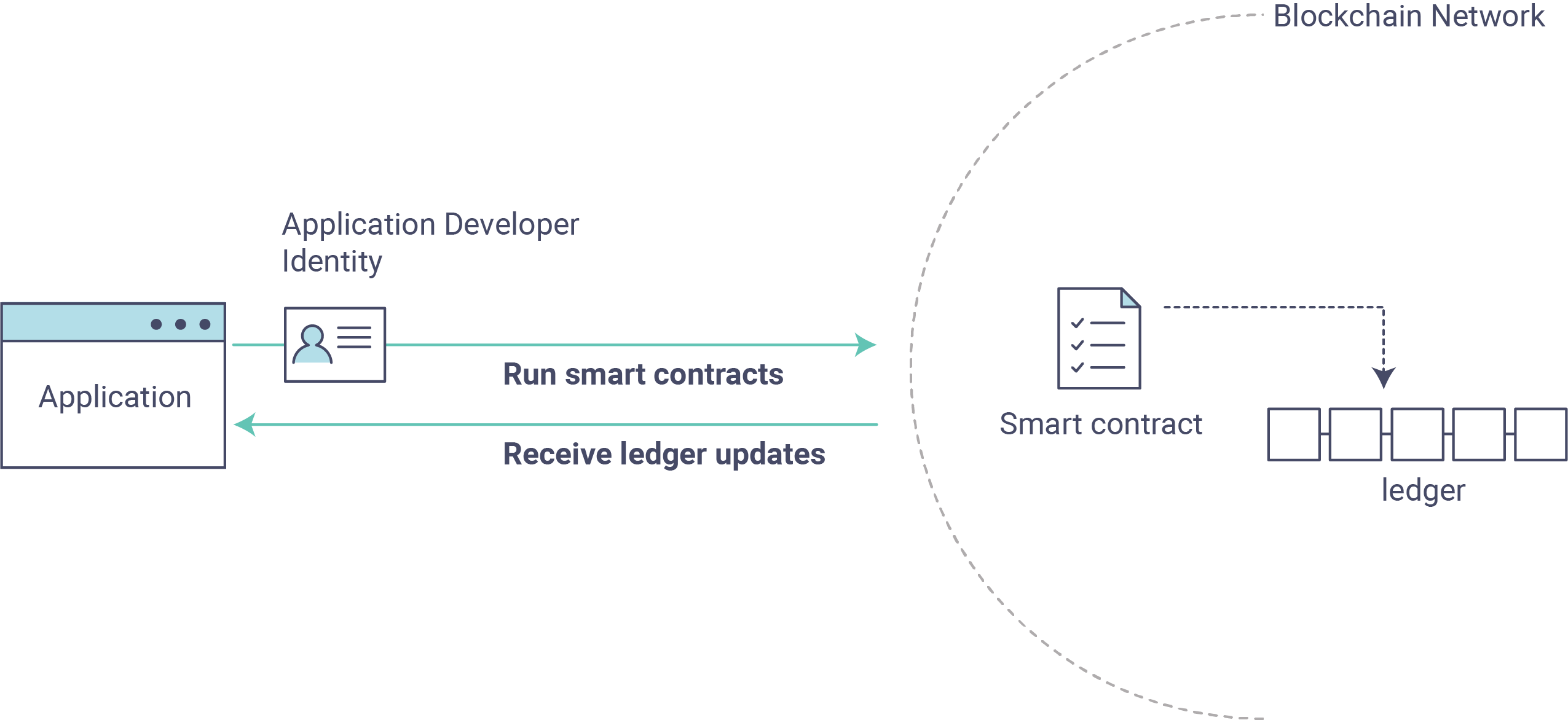
Applications use APIs to invoke smart contracts. These smart contracts are hosted
in the network and identified by name and version. For example, our chaincode container
is titled - dev-peer0.org1.example.com-fabcar-1.0 - where the name is fabcar,
the version is 1.0 and the peer it is running against is dev-peer0.org1.example.com.
APIs are accessible with an SDK. For purposes of this exercise, we’re using the Hyperledger Fabric Node SDK though there is also a Java SDK and CLI that can be used to develop applications.
Querying the Ledger
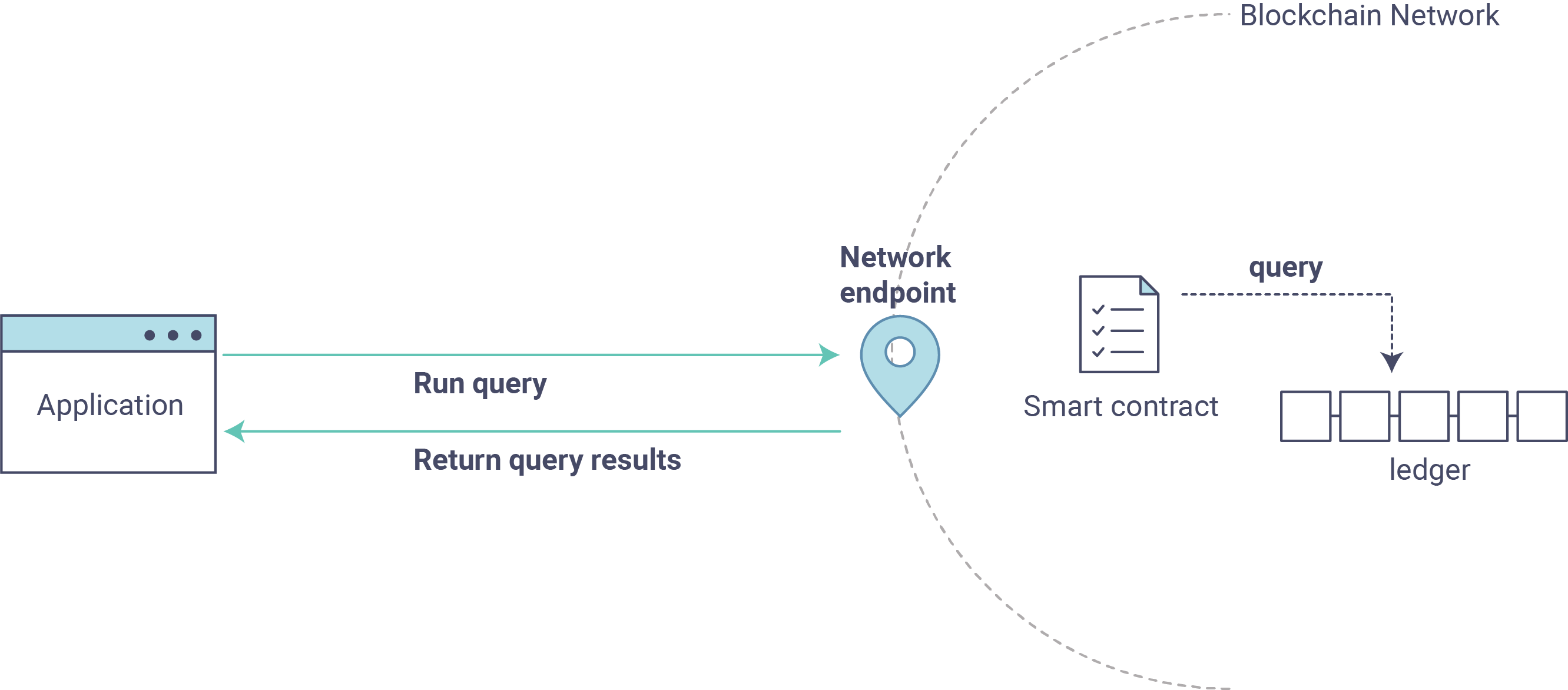
Queries are how you read data from the ledger. This data is stored as a series of key/value pairs, and you can query for the value of a single key, multiple keys, or – if the ledger is written in a rich data storage format like JSON (as in our development environment) – perform complex searches against it (looking for all assets that contain certain keywords, for example).
Note
You will issue all subsequent commands from the fabcar directory.
First, let’s run our query.js program to return a listing of all the cars on
the ledger. A function that will query all the cars, queryAllCars, is pre-loaded
in the app, so we can simply run the program as is:
node query.js
It should return something like this:
Query result count =  1
Response is  [{"Key":"CAR0", "Record":{"colour":"blue","make":"Toyota","model":"Prius","owner":"Tomoko"}},
{"Key":"CAR1",   "Record":{"colour":"red","make":"Ford","model":"Mustang","owner":"Brad"}},
{"Key":"CAR2", "Record":{"colour":"green","make":"Hyundai","model":"Tucson","owner":"Jin Soo"}},
{"Key":"CAR3", "Record":{"colour":"yellow","make":"Volkswagen","model":"Passat","owner":"Max"}},
{"Key":"CAR4", "Record":{"colour":"black","make":"Tesla","model":"S","owner":"Adriana"}},
{"Key":"CAR5", "Record":{"colour":"purple","make":"Peugeot","model":"205","owner":"Michel"}},
{"Key":"CAR6", "Record":{"colour":"white","make":"Chery","model":"S22L","owner":"Aarav"}},
{"Key":"CAR7", "Record":{"colour":"violet","make":"Fiat","model":"Punto","owner":"Pari"}},
{"Key":"CAR8", "Record":{"colour":"indigo","make":"Tata","model":"Nano","owner":"Valeria"}},
{"Key":"CAR9", "Record":{"colour":"brown","make":"Holden","model":"Barina","owner":"Shotaro"}}]
These are the 10 cars. A black Tesla Model S owned by Adriana, a red Ford Mustang
owned by Brad, a violet Fiat Punto owned by someone named Pari, and so on. The ledger
is key/value based and in our implementation the key is CAR0 through CAR9.
This will become particularly important in a moment.
Now let’s see what it looks like under the hood (if you’ll forgive the pun).
Use an editor (e.g. atom or visual studio) and open the query.js program.
The initial section of the application defines certain variables such as chaincode ID, channel name and network endpoints. In our sample app, these variables have been baked-in, but in a real app these variables would have to be specified by the app dev.
var options = {
    wallet_path: path.join(__dirname, './network/creds'),
    user_id: 'PeerAdmin',
    channel_id: 'mychannel',
    chaincode_id: 'fabcar',
    network_url: 'grpc://localhost:7051',
};
This is the chunk where we construct our query:
// queryCar - requires 1 argument, ex: args: ['CAR4'],
// queryAllCars - requires no arguments , ex: args: [''],
const request = {
      chaincodeId: options.chaincode_id,
      txId: transaction_id,
      fcn: 'queryAllCars',
      args: ['']
};
When the application ran, it looked in the chaincode_id for the smart contract –
ie, the chaincode – called fabcar, looking to execute the function
queryAllCars. That function was found in the chaincode and the query was
returned.
This is the essence of how applications work. Smart contracts are embedded in the network and define the scope of potential queries and updates. If a function does not exist in the smart contract, in other words, the application can’t execute it.
To take a look at the functions possible with the smart contract in our example,
navigate to the chaincode subdirectory and open fabcar.go in your editor.
You’ll see that we have the following functions available to call: initLedger,
queryCar, queryAllCars, createCar and changeCarOwner.
Let’s take a closer look at the queryAllCars function to see how it interacts
with the ledger.
func (s *SmartContract) queryAllCars(APIstub shim.ChaincodeStubInterface) sc.Response {

     startKey := "CAR0"
     endKey := "CAR999"

     resultsIterator, err := APIstub.GetStateByRange(startKey, endKey)
This defines the limits of the cars that can be queried by this particular function. Every
car between CAR0 and CAR999 – 1,000 cars in all, assuming they’re all tagged properly
– will be returned by queryAllCars. We could create more than 1,000 cars but
only the first thousand would be returned in a query unless we updated the smart
contract itself to search for a greater number of cars.
This is a representation of how an app would call different functions in chaincode.
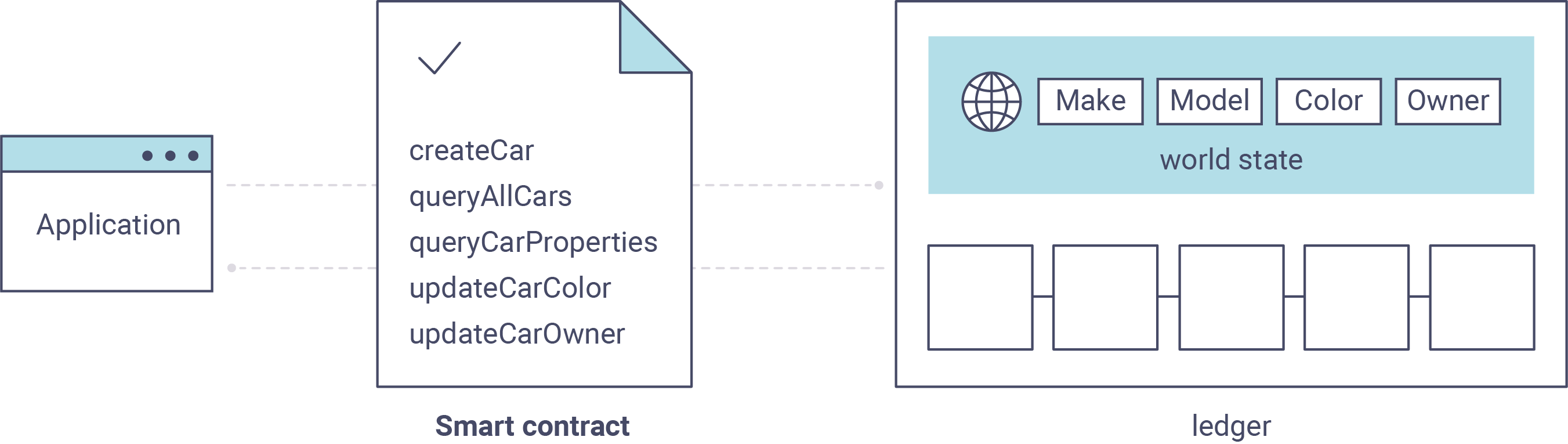
We can see our queryAllCars function up there, as well as one called createCar that
will allow us to update the ledger and ultimately append a new block to the chain in a
moment.
But first, go back to the query.js program and edit the constructor request to query
a specific car. We’ll do this by changing the function from queryAllCars
to queryCar and passing a specific “argument” (or “key”).
Let’s query a specific car: CAR4. We do that by editing query.js to look like this:
const request = {
      chaincodeId: options.chaincode_id,
      txId: transaction_id,
      fcn: 'queryCar',
      args: ['CAR4']
};
Save the program and navigate back to your fabcar directory. Now run the
program again:
node query.js
You should see the following:
{"colour":"black","make":"Tesla","model":"S","owner":"Adriana"}
If you go back and look at the result from when we queried every car before, you can see that CAR4 was Adriana’s black Tesla model S, which is what was returned here.
Using the queryCar function, we can query against any key (e.g. CAR0) and
get whatever make, model, color, and owner correspond to that car.
Great. At this point you should be comfortable with the basic query functions in the smart contract and the handful of parameters in the query program. Time to update the ledger...
Updating the Ledger
Now that we’ve done a few ledger queries and added a bit of code, we’re ready to update the ledger. There are a lot of potential updates we could make, but let’s just create a new car for starters.
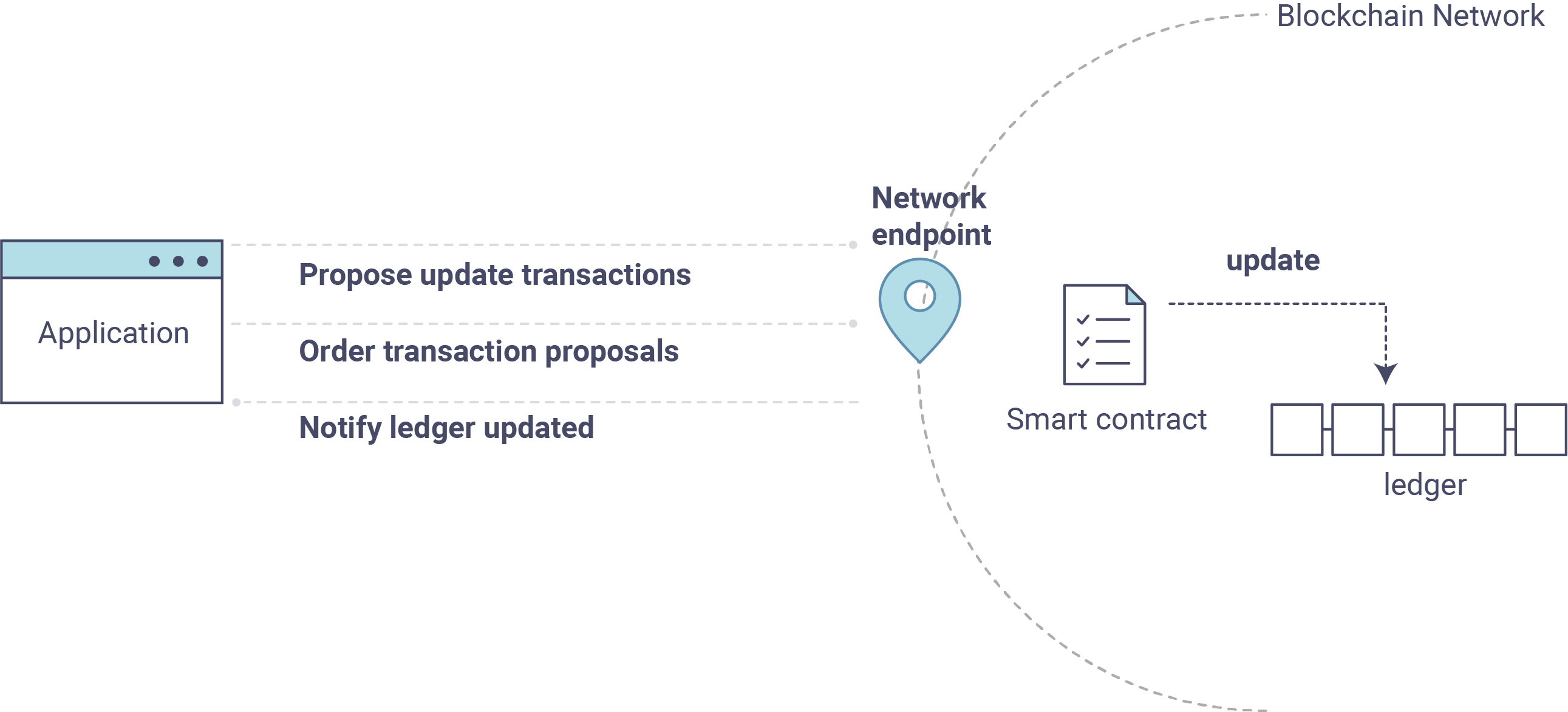
Ledger updates start with an application generating a transaction proposal.
Just as in a query, a request is constructed to identify the channel ID,
function, and specific smart contract to target for the transaction. The program
then calls the channel.SendTransactionProposal API to send the transaction
proposal to the network for endorsement.
The network returns a proposal response which the application uses to build and
sign a transaction request. This request is sent to the network by calling the
channel.sendTransaction API, after which the transaction is bundled into a block and
delivered back to the network for validation.
Our first update to the ledger will be to create a new car. We have a separate
Javascript program – invoke.js – that we will use to make updates. Just like
query, use an editor to open the program and navigate to the codeblock where we
construct our invocation:
// createCar - requires 5 args, ex: args: ['CAR11', 'Honda', 'Accord', 'Black', 'Tom'],
// changeCarOwner - requires 2 args , ex: args: ['CAR10', 'Barry'],
// send proposal to endorser
var request = {
    targets: targets,
    chaincodeId: options.chaincode_id,
    fcn: '',
    args: [''],
    chainId: options.channel_id,
    txId: tx_id
};
You’ll see that we can call one of two functions - createCar or changeCarOwner.
First, let’s create a red Chevy Volt and give it to an owner named Nick. We’re up to
CAR9 on our ledger, so we’ll use CAR10 as the identifying key here. Edit this
codeblock to look like this:
var request = {
    targets: targets,
    chaincodeId: options.chaincode_id,
    fcn: 'createCar',
    args: ['CAR10', 'Chevy', 'Volt', 'Red', 'Nick'],
    chainId: options.channel_id,
    txId: tx_id
};
Save it and run the program:
node invoke.js
There will be some output in the terminal about Proposal Response and Transaction ID. However, all we’re concerned with is this message:
The transaction has been committed on peer localhost:7053
Note
The network emits this event notification and our application receives it thanks to our``eh.registerTxEvent`` API.
To see that this transaction has been written, go back to query.js, change the
function queryAllCars, and delete the arguments.
In other words, change this:
- const request = {
- chaincodeId: options.chaincode_id, txId: transaction_id, fcn: ‘queryCar’, args: [‘CAR4’]
};
To this:
const request = {
      chaincodeId: options.chaincode_id,
      txId: transaction_id,
      fcn: 'queryAllCars',
      args: ['']
};
Save once again, then query:
node query.js
Which should return something like this:
Query result count =  1
Response is  [{"Key":"CAR0", "Record":{"colour":"blue","make":"Toyota","model":"Prius","owner":"Tomoko"}},
{"Key":"CAR1",   "Record":{"colour":"red","make":"Ford","model":"Mustang","owner":"Brad"}},
{"Key":"CAR10","Record":{"colour":"Red","make":"Chevy","model":"Volt","owner":"Nick"}},
{"Key":"CAR2", "Record":{"colour":"green","make":"Hyundai","model":"Tucson","owner":"Jin Soo"}},
{"Key":"CAR3", "Record":{"colour":"yellow","make":"Volkswagen","model":"Passat","owner":"Max"}},
{"Key":"CAR4", "Record":{"colour":"black","make":"Tesla","model":"S","owner":"Adriana"}},
{"Key":"CAR5", "Record":{"colour":"purple","make":"Peugeot","model":"205","owner":"Michel"}},
{"Key":"CAR6", "Record":{"colour":"white","make":"Chery","model":"S22L","owner":"Aarav"}},
{"Key":"CAR7", "Record":{"colour":"violet","make":"Fiat","model":"Punto","owner":"Pari"}},
{"Key":"CAR8", "Record":{"colour":"indigo","make":"Tata","model":"Nano","owner":"Valeria"}},
{"Key":"CAR9", "Record":{"colour":"brown","make":"Holden","model":"Barina","owner":"Shotaro"}}]
You can see CAR10 has now been successfully written to the ledger. We’ve
created a car!
So now that we’ve done that, let’s say that Nick is feeling generous and he wants to give his Chevy Volt to someone named Barry.
To do this go back to invoke.js and change our function from createCar to
changeCarOwner and input the arguments like this:
var request = {
    targets: targets,
    chaincodeId: options.chaincode_id,
    fcn: 'changeCarOwner',
    args: ['CAR10', 'Barry'],
    chainId: options.channel_id,
    txId: tx_id
};
The first argument – CAR10 – reflects the car that will be changing owners.
The second argument – Barry – defines the person who will be the new
owner of the car.
Note
The new owner of a car does not need to be someone already specified on the ledger. There is no “Barry” who already owns a car. “Barry” is a variable, not unlike the make or model or color of the car.
Save and execute the program again:
node invoke.js
As before, look for this message:
The transaction has been committed on peer localhost:7053
Now let’s query the ledger and see that it’s been updated to reflect this:
node query.js
It should return this result:
Query result count =  1
Response is  [{"Key":"CAR0", "Record":{"colour":"blue","make":"Toyota","model":"Prius","owner":"Tomoko"}},
{"Key":"CAR1",   "Record":{"colour":"red","make":"Ford","model":"Mustang","owner":"Brad"}},
{"Key":"CAR10","Record":{"colour":"Red","make":"Chevy","model":"Volt","owner":"Barry"}},
{"Key":"CAR2", "Record":{"colour":"green","make":"Hyundai","model":"Tucson","owner":"Jin Soo"}},
{"Key":"CAR3", "Record":{"colour":"yellow","make":"Volkswagen","model":"Passat","owner":"Max"}},
{"Key":"CAR4", "Record":{"colour":"black","make":"Tesla","model":"S","owner":"Adriana"}},
{"Key":"CAR5", "Record":{"colour":"purple","make":"Peugeot","model":"205","owner":"Michel"}},
{"Key":"CAR6", "Record":{"colour":"white","make":"Chery","model":"S22L","owner":"Aarav"}},
{"Key":"CAR7", "Record":{"colour":"violet","make":"Fiat","model":"Punto","owner":"Pari"}},
{"Key":"CAR8", "Record":{"colour":"indigo","make":"Tata","model":"Nano","owner":"Valeria"}},
{"Key":"CAR9", "Record":{"colour":"brown","make":"Holden","model":"Barina","owner":"Shotaro"}}]
Summary
Now that we’ve done a few queries and a few updates, you should have a pretty good sense of how applications interact with the network. You’ve seen the basics of the roles smart contracts, APIs, and the SDK node play in queries and updates and you should have a sense of how other kinds of applications can be used to perform any number of business tasks that are crucial to blockchain networks in the real world.
In subsequent documents we’ll learn how to actually write a smart contract and how some of these more low level application functions can be leveraged (especially relating to identity and membership services).
Additional Resources
The Hyperledger Fabric Node SDK repo is an excellent resource for deeper documentation and sample code. You can also consult the Fabric community and component experts on Hyperledger Rocket Chat.